
Paperclip Live Plugin
The Paperclip live plugin is the thin operator surface for one operator question:
What is moving right now inside this Paperclip company?
Use this page when you want the plugin itself: install, login, per-company project selection, and the live surfaces it adds inside Paperclip.
If you need the broader Paperclip company onboarding flow first, start with Set up Agent Analytics for your 📎Paperclip company.
What it adds
Section titled “What it adds”The plugin adds three Paperclip surfaces:
- a company-level live page
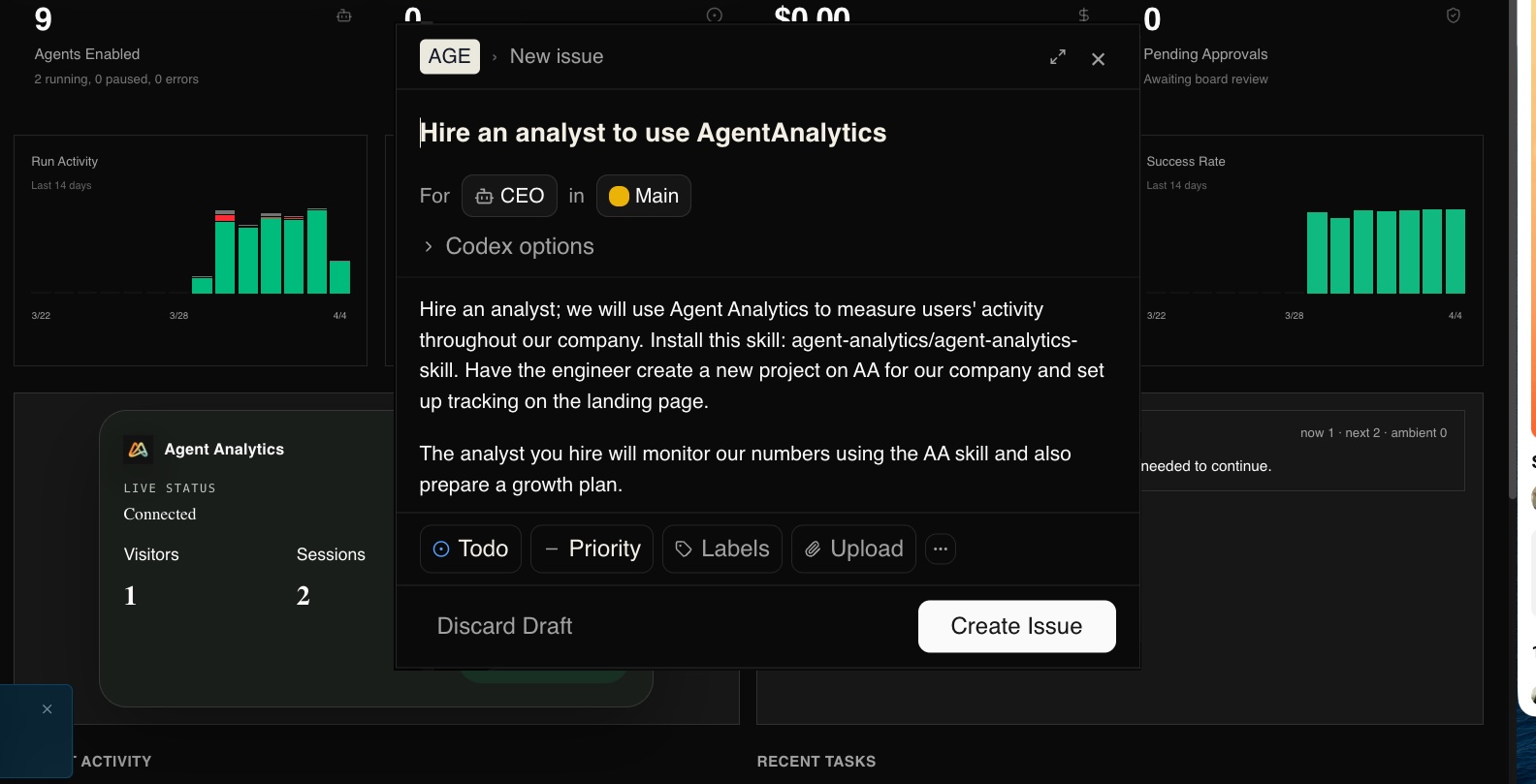
- a compact dashboard widget
- a settings page for existing-account login, per-company project selection, Paperclip setup help, and advanced plugin settings
This plugin is intentionally narrow:
- it uses Agent Analytics
/streamand/live - it keeps credentials in the worker
- it is multi-company: each Paperclip company has its own plugin setup state
- each Paperclip company selects one Agent Analytics project in that company’s plugin settings
- it does not rebuild the full analytics product inside Paperclip
Package
Section titled “Package”Install this package in Paperclip:
@agent-analytics/paperclip-live-analytics-pluginThe package README lives in the plugin repo, and the operator/maintainer notes also ship with the package under its local docs/ directory.
Plugin repository: Agent-Analytics/paperclip-live-analytics-plugin
Install and connect
Section titled “Install and connect”- In Paperclip, open
Settings->Plugins. - Install
@agent-analytics/paperclip-live-analytics-plugin. - Open the plugin
Configurepage. - If the Agent Analytics account is not ready yet, use the Paperclip setup task shown in the plugin help panel or follow Set up Agent Analytics for your 📎Paperclip company.
- Log in with your existing Agent Analytics account.
- In that same company workspace, choose the Agent Analytics project in plugin settings.
- Open the company live page from the sidebar.
If you run multiple Paperclip companies, repeat this setup in each company workspace. The important rule is simple: project selection is per Paperclip company, not global across the whole Paperclip instance.
Important auth rule
Section titled “Important auth rule”The plugin login popup is for an existing Agent Analytics account only.
If the account still needs to be created, do that from the Paperclip task flow first. The plugin blocks account creation from the popup itself and sends users back to the setup guide instead.
What the plugin is good for
Section titled “What the plugin is good for”Use the live plugin when you want:
- a dashboard widget with live status
- a live page for current visitors, countries, top pages, and recent events
- a per-company plugin setup where each Paperclip company chooses its own Agent Analytics project
- a multi-company setup that does not force one global project choice across the whole Paperclip instance
- a worker-owned Paperclip integration that keeps the auth session out of the browser UI
Do not use it as the primary setup guide for the full Paperclip company flow. That belongs in Set up Agent Analytics for your 📎Paperclip company.
Billing note
Section titled “Billing note”The plugin reads Agent Analytics live routes. Free accounts can still show the fallback 7-day summary for the selected project, but live visitors and event streaming require a paid tier.
Revoke access later
Section titled “Revoke access later”If you need to revoke a plugin-owned login later, use the web app’s Account Settings → Agent Sessions page. Active Paperclip connections show up there alongside other hosted agent-session clients.